Which meal planning app should you choose?
CookBook is our top pick for planning meals from your own recipe collection across mobile and web. Save supported website and social recipes, scan family favourites, choose meals for your calendar and create an editable shopping list.
Adjust servings for the people eating, add notes to your plan and keep the recipe ready when it is time to cook. Plan your first meals with CookBook; the free allowance includes 20 saved recipes, 20 smart imports and 2 shopping lists.
Choose Plan to Eat if dedicated freezer records and reusable menus are your priority, or Samsung Food for invited collaborators and Food+ suggested plans. The comparison explains those differences, along with devices, prices and offline use.
In this article
- Which meal planning app should you choose?
- Five meal planning apps at a glance
- Start with your recipes or start with a suggested menu?
- CookBook: our pick for your own recipes, from saving to supper
- Plan to Eat: the strongest fit for freezer cooking and repeat menus
- Samsung Food: shared plans and suggested weeks
- Paprika 3: a purchased planner with native desktop access
- Recipe Keeper: weekly planning alongside a printable family cookbook
- Free plans, trials and prices: compare the actual device setup
- A useful grocery list follows your cooking decisions
- Nutrition, household access and offline use can decide the choice
- Choose with a week that actually changes
- Switching your recipes and meal routine to CookBook
- Mealime is closing: what existing users should know
- Frequently asked questions
- Our verdict: start with the recipes you already love
Five meal planning apps at a glance
A meal planning app connects the meals you intend to cook with their recipes, dates, portions and shopping ingredients. A recipe manager mainly keeps the collection organised. The strongest choice for you does both in a way that fits your week.
| App | Best planning job | Where the meals come from | The important trade-off |
|---|---|---|---|
| CookBook | Best for planning from your own recipes across mobile and web | Your websites, supported social posts, scans and own recipes | Offline planner editing and linked separate family accounts are not available |
| Plan to Eat | Repeating menus and managing batches of frozen meals | Your imported or entered recipes | Paid after the trial; you supply the recipes and choose the plan |
| Samsung Food | Shared plans, recipe discovery and optional suggested weeks | Your saved recipes and a public catalogue; tailored plans with Food+ | Several Food+ planning and nutrition features are mobile-only |
| Paprika 3 | Own-recipe planning with native desktop apps and a pantry list | Your website imports and entered recipes | Platforms are purchased separately; there is no full browser planner |
| Recipe Keeper | Planning from a family collection you also want to print | Your imported, scanned and entered recipes | Separate platform upgrades; nutrition fields are not a new ingredient-based calculation |
These recommendations follow the specific jobs described in each app's linked product guides below. For a broader comparison of importing, organisation and cooking tools, see our recipe manager buying guide.
Start with your recipes or start with a suggested menu?
If you already know the dinners your household enjoys, choose a planner that makes that collection useful. Your mother's soup, a favourite food-blog curry and a saved Instagram salad should be easy to find, portion and schedule. CookBook is especially suited to this mixed collection. Plan to Eat, Paprika and Recipe Keeper also build plans around recipes you add.
If deciding what to eat is the main obstacle, a catalogue and suggested menu may be more useful than another empty calendar. Samsung Food combines discovery with your saved recipes; Food+ adds tailored weekly plans. Those are different decisions: saving your own recipe does not require accepting a generated week's menu.
Before subscribing, write down one non-negotiable: separate logins for family planning, working on an offline laptop, recording freezer portions, or opening the plan in any browser. That requirement can rule an app in or out more decisively than the number of recipes in its catalogue.
CookBook: our pick for your own recipes, from saving to supper
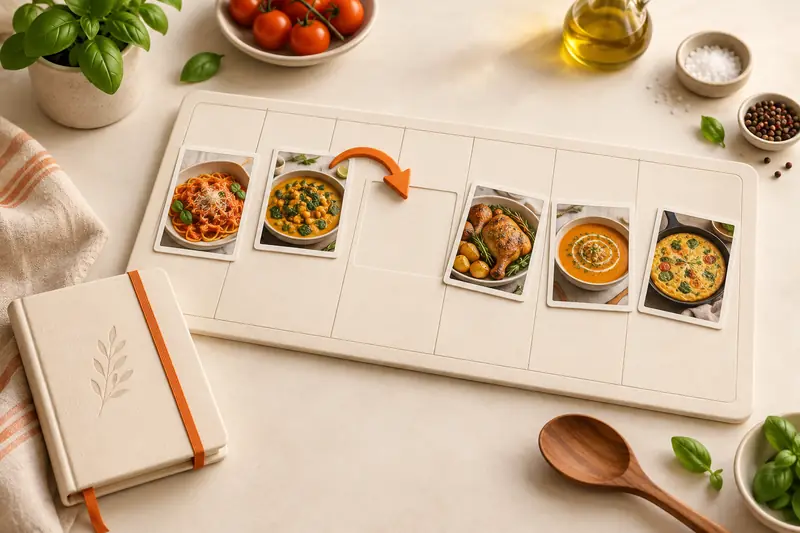
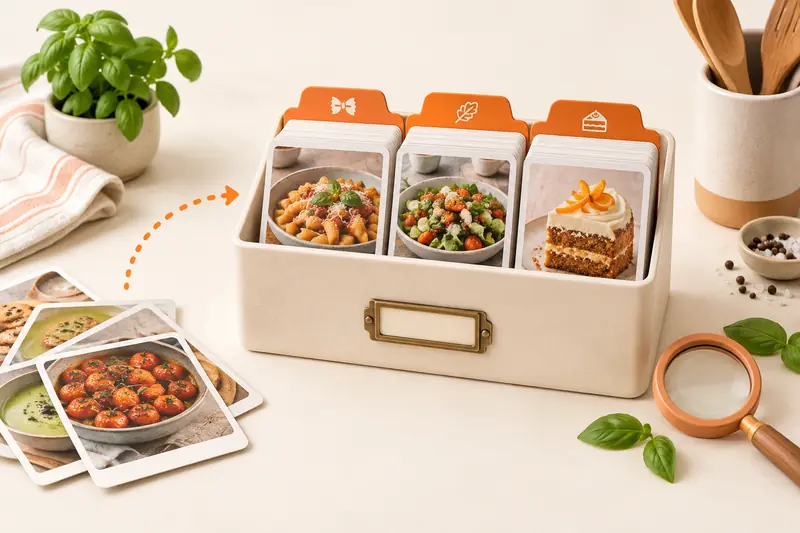
CookBook suits the cook whose next week is already scattered across a few places: a family recipe photo, a website bookmark and a social save. Bring those recipes into one editable collection, organise the ones you repeat, then choose what goes on the calendar. This keeps the plan grounded in food you actually want to make.
The planner has day, week and month views, meal slots, servings and notes for evenings without a recipe. You can move a dinner or copy a date range when a useful week deserves another outing. Your saved recipes, plans and lists sync through the same account across iOS, Android and the web app. The planner guide and copy-and-move instructions explain the controls.
What makes CookBook different for meal planning
- Your favourite food comes first. Bring a supported social save, a website recipe and a family scan into the same collection, then choose the meals you want.
- The week stays yours to adjust. Change servings, move a dinner or reuse a date range instead of rebuilding a plan from scratch.
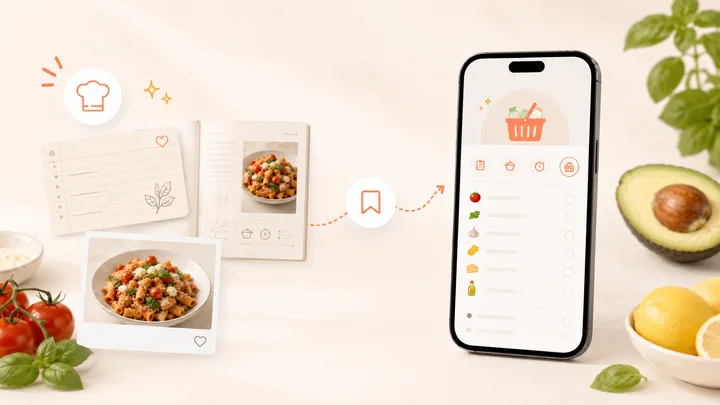
- The next step is already connected. Turn selected meals into an editable shopping list, then open the same saved recipe when it is time to cook.
- Your computer is part of the kitchen. Use a browser for planning and mobile for shopping and cooking through the same account.
This is why we recommend CookBook for planning from a varied personal collection. A saved social recipe and an old family favourite can belong to the same week without keeping separate recipe, calendar and grocery systems.
The limits to know: moving a dinner should prompt a review of an existing shopping list; do not assume it is rewritten automatically. CookBook does not automatically count your leftover portions or pantry stock. It also does not link separate household accounts, and planner edits require a connection. Choose it for a connected recipe routine, rather than automated stock control.
Explore CookBook's meal planner or follow the complete five-dinner planning example.
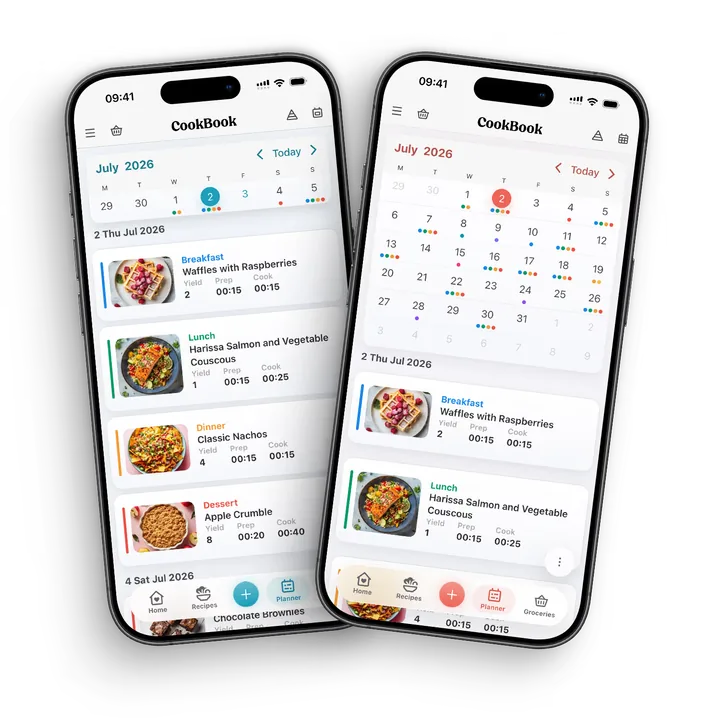
Plan the portion you will actually eat. CookBook Pro adds personal calorie and macro targets, while a recipe can keep nutrition values you enter yourself. A planned recipe starts at one consumed serving for nutrition totals; adjust that count for your meal. Scaling a recipe for the household and tracking your own portion are different jobs. See nutrition and personal targets. Need a fresh idea beside your favourites? Discovery helps you find a recipe to review, save and add to your plan.
Plan to Eat: the strongest fit for freezer cooking and repeat menus
Choose Plan to Eat when the calendar is the centre of your kitchen routine. Its reusable Menus are useful for a week you want to repeat, and its Freezer records prepared meals, servings and the date frozen. Scheduling a stored meal can add a defrost reminder. That is a more specific batch-cooking workflow than simply writing “leftovers” on a calendar. See the planner overview and Freezer instructions.
The shopping list follows your selected planning dates. Repeated ingredients merge when their names and units match, while Staples gives you a reusable list of regular purchases. Staples still needs your input; it is not an automatic count of what remains in the cupboard. The shopping documentation and Staples guide make that distinction clear.
Plan to Eat also supports social importing and photo importing. Its central commitment is still to your own recipes, rather than supplying a ready-made menu service. There is no permanent free plan after its trial. If freezer records and repeating whole menus matter most, it deserves a place on your shortlist; choose CookBook when collecting, adapting and cooking your recipes across mobile and browser is the broader job.
Read the detailed CookBook vs Plan to Eat comparison, including importing, nutrition, offline use and export formats.
Samsung Food: shared plans and suggested weeks
Samsung Food is the most natural option here when you want to combine your own collection with recipe discovery and collaborative planning. The free planner accepts saved recipes, links and new recipes. A Queue holds ideas without assigning a date, and Previous keeps planning history. Its current guide allows three saved plans for free, with more through Food+.
Invited collaborators can work on a shared meal plan. Joining replaces their individual plan, so agree which household plan to use first. The current planner guide documents this behaviour.
Food+ adds tailored weekly plans, recipe personalisation and nutrition goals. Several of these extras are mobile-only, including tailored plans and nutrition tracking, even though the core service also has a web app. You do not need a Samsung phone. Check the Food+ feature and platform details against the device on which you intend to plan.
Choose it for collaboration or suggestions. Choose CookBook when your priority is a focused personal recipe collection feeding the week you select. Before moving a large library into Samsung Food, confirm how you could download your recipes and personal edits later; sharing a collection link is not the same as a portable backup.
See CookBook vs Samsung Food for the source-saving, household and portability differences.
Paprika 3: a purchased planner with native desktop access
Paprika 3 is a strong option for cooks who want installed apps on a computer and phone, with a purchase for each platform. Its daily, weekly and monthly calendar accepts recipes, notes and reusable Menus. The pantry can record ingredients, quantities and dates; items already listed there can be unchecked when you add recipes to groceries. The Paprika 3 manual describes these planning and pantry controls.
That setup suits a household with a familiar recipe library and a willingness to maintain its pantry entries. It does not magically know that someone finished the rice. The grocery list combines ingredients and sorts them into aisles, and recipes remain available locally. Paprika's Windows product page documents these tools and offline access.
The main trade-off is your device setup. Paprika has native iOS, Android, Mac and Windows apps, but not a full browser planner. Buying the iPhone version does not cover Windows. Its current version 3 purchases also should not be confused with the announced version 4 subscription for new features. Existing users can retain their existing features without that subscription, according to Paprika's version 4 announcement.
Choose Paprika 3 if native desktop use and the current purchase model are decisive. Choose CookBook for browser access and a mixed-source save-to-cook workflow. Read CookBook vs Paprika before adding up platform costs.
Recipe Keeper: weekly planning alongside a printable family cookbook
Recipe Keeper combines weekly and monthly planning with website importing, recipe-photo scanning and a collection you can turn into a designed PDF cookbook. That makes it an appealing choice when the family recipes on next week's menu are also the ones you want to give someone in print.
Its website documents sending planned ingredients to shopping lists, aisle grouping, multiple lists and syncing across installed mobile and desktop apps. It also supports Instagram and TikTok importing, so social recipes are not a reason to dismiss it. See Recipe Keeper's feature overview.
The iOS listing adds a useful planning distinction: a random meal plan based on your hints. It also describes nutrition fields and nutritional search, which are different from recalculating a changed recipe's nutrition from its ingredients. The official listing specifies separate purchases for other platforms.
Choose it for a collection that also becomes a family book. Choose CookBook if opening the same account in a browser and working with recipe-aware assistance matter more. A printable PDF is useful, but keep the separate recipe-file export when transferring editable recipes. Our CookBook vs Recipe Keeper guide covers that distinction.
Free plans, trials and prices: compare the actual device setup
| App | Free starting point | Published US price examples | What to check |
|---|---|---|---|
| CookBook | 20 saved recipes, 20 smart imports and 2 shopping lists | Pro US$6.99 monthly or US$39.99 yearly | 14-day trial on the yearly plan; one account across supported mobile and web devices |
| Plan to Eat | 14-day trial without a card; no ongoing free plan | US$5.95 monthly or US$49 yearly | Subscription covers its mobile apps and website |
| Samsung Food | Core saving, planning and shopping | Food+ US$6.99 monthly or US$59.99 yearly | 7-day Food+ trial; several premium features require mobile |
| Paprika 3 | Windows trial: 50 recipes, no cloud sync, no time limit | iOS US$4.99; Windows US$29.99 | Each platform sold separately; these are version 3 prices |
| Recipe Keeper | Free download with limits to inspect in the app | US iOS Pro upgrade US$19.99 | Other platforms require separate purchases |
Prices checked in September 2026 are a guide in US dollars. Country, app store, offers and taxes can change the price; use the current checkout terms for your devices. Sources: CookBook plans, Plan to Eat pricing and trial, Samsung Food+, Paprika iOS, Paprika Windows and Recipe Keeper iOS.
A low phone price can be a good deal for one platform. A single account subscription can be simpler across several. Compare the total setup you will use, then decide whether freezer tools, collaboration, scanning or browser access justify the difference.
A useful grocery list follows your cooking decisions
All five apps connect recipes with shopping. The useful question is what happens when you change servings, repeat an ingredient or move dinner outside the dates you are shopping for.
- CookBook: select ingredients from recipes or the planner, add non-recipe groceries and edit the resulting list. A saved list needs another look when the plan changes.
- Plan to Eat: shopping is tied to the planner's selected date range. Its matching-name-and-unit rule explains why differently written ingredients can remain separate.
- Samsung Food: add a whole plan or selected recipes to a shareable list. A collaborator can help shop without everyone maintaining a separate copy.
- Paprika: its pantry can help omit ingredients you recorded as available. The quality of that stock record depends on keeping it current.
- Recipe Keeper: send planned ingredients to lists and group purchases by aisle or store. This is useful when a single meal plan involves more than one shop.
For example, two recipes calling for “1 onion” can be combined sensibly, but “1 onion” and “100 g chopped onion” still deserve a check. Also separate a cooked leftover from a fresh batch: another calendar entry should not lead you to buy its ingredients twice. Review quantities before choosing package sizes in a shop.
CookBook's shopping-list guide explains ingredient selection and its US/Canada Instacart support. For a worked example, follow turning recipes into a shopping list. If shopping is your main concern, compare the best grocery list apps for that job.
Nutrition, household access and offline use can decide the choice
Want nutrition for recipes you adapt?
CookBook Pro calculates ingredient-based estimates; saved nutrition feeds daily planner totals for calories, fat, carbohydrate and protein. Recalculate after changing ingredients and refresh displayed percentages after changing goals. CookBook's nutrition guide explains the distinction between recipe values and personal targets.
Plan to Eat also calculates recipe nutrition and shows daily planner totals. Samsung Food+ adds tailored plans and mobile nutrition tracking. Paprika's saved nutrition and Recipe Keeper's nutrition fields remain useful, but storing a value is not the same as calculating your edited dish. Choose the workflow you need, and check ingredient quantities and servings before relying on an estimate. See Plan to Eat's nutrition tools.
Does everyone need their own login?
CookBook syncs devices using one account; it does not link independent family profiles. Sharing that login gives access to the whole account, so separate accounts exchanging recipes are a different arrangement. Plan to Eat also permits household use of one login. Samsung Food's invited planning collaborators are the more relevant option if separate-account collaboration is essential. Read CookBook's family-access guidance and Samsung Food's sharing instructions before choosing how to share.
Will you need to edit the plan without a connection?
CookBook's mobile apps can show previously synced recipes and cached lists, but planner edits, imports and AI need internet; its web app is online-only. Plan to Eat supports changes to preloaded recipes, plans and the current list offline, though login and changing the shopping date range need a connection. That is a meaningful Plan to Eat advantage for disconnected planning. Compare the CookBook offline guide and Plan to Eat offline guide.
Choose with a week that actually changes
Use this example to decide which tools matter in your own kitchen. You have three saved dinners: a lentil soup, vegetable tacos and a pasta bake. Two people are eating, Thursday becomes busy, and you want one cooked batch to cover another meal.
- Bring in the recipes you will use. Add one from a website, one from your own notes and one from a photographed recipe. Review their ingredients and servings. A beautiful calendar cannot fix a missing quantity.
- Plan the cooking, not just the dish names. Schedule soup for the day you have time, set the batch size and add a note for the later leftover meal. Leave a slot for a night out instead of filling every gap with another recipe.
- Move Thursday's dinner. In CookBook, open the planned meal, choose Edit and change its date. Decide whether it still belongs on this shopping trip before adjusting the list.
- Check the groceries against your kitchen. Remove what you have, include ingredients for the portions you will cook, and add breakfast food and household items that are not in a dinner recipe.
- Open the plan where you will cook. Confirm that the recipe, notes and shopping list are available on that device. If offline edits or another person's separate login are essential, make that a deciding requirement.
If counting frozen batches becomes the difficult part, shortlist Plan to Eat. If choosing the meals is the difficult part, try Samsung Food+'s suggested plans. If bringing scattered favourites into one usable week is the difficult part, start with CookBook.
Switching your recipes and meal routine to CookBook
A plan is easy to redraw. A library of adjusted ingredients, family notes and photos deserves more care. Keep the original archive and check a small transferred sample before moving the rest. Recipe exports do not automatically promise transfer of your meal history, freezer quantities or account settings.
- From Plan to Eat: export CSV or TXT through its website, including after the subscription expires. The CSV contains a Photo URL field, so verify that images are copied into the destination. See the export guide.
- From Paprika or Recipe Keeper: use an editable recipe archive rather than only a printable book. CookBook's Pro transfer service accepts Paprika HTML ZIP or native recipe files and Recipe Keeper ZIP.
- From Samsung Food: confirm a downloadable format with support before assuming that collection links will transfer your edits. Keep original source URLs and separate copies of recipes you wrote or changed.
- Into CookBook: self-service imports accept up to 250 recipes per file using its CSV template or a ZIP of .cookbook files. CSV covers core fields, not every field. Other supported formats and larger transfers need Pro team assistance. See supported transfer formats.
- Leaving CookBook later: export Text, PDF or native CookBook files. Images are links to its servers, so make sure the destination copies them before deleting the account. Deletion removes those hosted images. See CookBook's backup and image guidance.
Mealime is closing: what existing users should know
Mealime will be discontinued on 21 October 2026. Its official closure notice says further Pro charges are stopping and Pro features are becoming available to all users during the wind-down.
The announced replacement is Meals Hub in Albertsons Companies store apps and websites. It retains Mealime recipes and provides free planning and shopping tools. The notice says you can use it without shopping at an Albertsons store, but some preferences need to be set up again. Confirm access through the relevant retailer before relying on it.
Mealime also says personal data will be deleted at shutdown. Do not assume personal notes or account settings will migrate automatically. Review what you want to retain now. If you want to build an independent collection around your own recipes, choose one of the continuing options above.
Moving from Mealime? Follow our closure and replacement checklist before 21 October 2026.
Frequently asked questions
What is the best meal planning app for my own recipes?
CookBook is our top pick for planning meals from your own recipes across iOS, Android and web. Save from supported websites, social posts, photos and your own notes, set servings and turn planned meals into editable shopping lists. Plan to Eat is a strong alternative for dedicated freezer records and reusable menus; Samsung Food supports invited collaborators on shared plans.
Is there a free meal planning app?
Samsung Food has free core saving, planning and shopping tools, with three saved plans in its current planner guide. CookBook has a free starting allowance of 20 saved recipes, 20 smart imports and 2 shopping lists. Plan to Eat offers a 14-day trial, rather than an ongoing free plan.
Can a meal planning app make a grocery list from my recipes?
Yes. All five recommended apps connect recipes or planned meals with grocery lists. Set the servings first, select the meals you are shopping for and review the ingredients you already have. Check the list again after moving dinners or changing portions, because a previously created list may need editing.
Which app is best for batch cooking and freezer meals?
Plan to Eat is our pick for a dedicated freezer workflow. Its Freezer records prepared meals, servings and dates, and can add a defrost reminder when a stored meal is planned. A normal calendar note can mark leftovers, but it does not provide the same freezer record.
Which meal planner lets family members use separate accounts?
Samsung Food supports invited collaborators on a shared meal plan. Joining that plan replaces a collaborator's individual plan. CookBook does not currently link separate family accounts; devices signed into the same account share its collection and plans, while separate accounts can exchange individual recipes.
Can an app choose a week's meals for me?
Samsung Food+ offers tailored weekly plans with recipe suggestions, and Recipe Keeper's iOS listing describes random meal plans based on your hints. CookBook's planner is built around meals you choose from your collection. Recipe assistance and nutrition calculations are separate capabilities from automatically choosing a week.
Do meal planning apps work offline?
It depends on the app and the action. CookBook's mobile apps can display previously synced recipes and cached lists, but planner edits require internet. Plan to Eat supports editing a preloaded plan offline, although login and changing the shopping-list date range require a connection. Paprika stores recipe data locally.
Is Mealime shutting down?
Yes. Mealime's official notice gives 21 October 2026 as its discontinuation date and directs users to Meals Hub in Albertsons Companies apps and websites. It says further Pro subscription charges are stopping. Existing users should review personal information they need to retain before shutdown.
Our verdict: start with the recipes you already love
Choose CookBook when the goal is to cook more of your own favourites. Its collection, planner, shopping lists and cooking tools cover the whole routine on mobile and web. You choose the food and keep control as the week changes.
- Choose Plan to Eat when prepared freezer meals and reusable Menus are essential.
- Choose Samsung Food when independent household collaborators or a suggested week's menu come first.
- Choose Paprika 3 when native desktop planning and its current per-platform purchase model matter most.
- Choose Recipe Keeper when your planned meals also need to become a printable family cookbook.
Start with three dinners in CookBook: one familiar favourite, one social find and one meal for a busy night. Set the servings, choose the dates and check the resulting shopping list against your kitchen. Get CookBook, compare its free and Pro plans, or follow the five-dinner guide to put your first week together.