Which grocery list app should you choose?
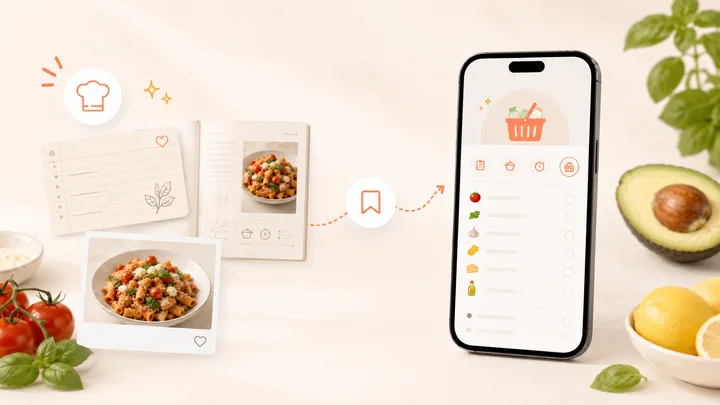
CookBook is our top pick for a grocery list app that turns saved recipes and meal plans into the weekly shop. Set your recipe servings, build an editable ingredient list and add everyday purchases with Regular Items or custom additions. Your list stays alongside the recipes on iOS, Android and web.
Try recipe-to-shopping lists in CookBook with 20 saved recipes, 20 smart imports and 2 shopping lists free. Devices signed into the same CookBook account share the list.
For a shared household checklist with independent logins, consider AnyList, Bring! or Samsung Food. CookBook is the pick here for the connected recipe-to-dinner routine, rather than separate-account collaboration.
In this article
- Which grocery list app should you choose?
- Six grocery list apps at a glance
- What matters more than a long feature list
- CookBook: best for the whole recipe-to-shopping journey
- AnyList: best for shared lists with optional planning depth
- Bring!: best for a quick, visual household list
- OurGroceries: best for repeat purchases and simple household use
- Samsung Food: best for free recipe lists with invited collaborators
- Plan to Eat: best for shopping from a calendar
- Free plans, prices and device access
- A practical example: two dinners, one household shop
- Switching to CookBook: bring the recipes behind your shopping
- Our verdict: CookBook for recipe-led shopping
- Frequently asked questions
Six grocery list apps at a glance
A useful shopping app should handle both dinner ingredients and ordinary items such as coffee or washing-up liquid. These choices all support lists, but they differ in how much preparation they remove. Strong means the documented workflow directly supports the task; Limited identifies a specific extra step or account restriction, not a penalty for having a paid plan.
| App | Recipes into groceries | Shopping with other people | Best reason to choose it |
|---|---|---|---|
| CookBook | Strong: build from saved recipes or planned meals, with editable ingredients. | Limited: lists sync within one account; separate-account collaboration is not available. | Best for turning your saved recipes and planned meals into the weekly shop. |
| AnyList | Strong: recipe ingredients combine; Complete adds meal-calendar tools. | Strong: invite people using their own AnyList accounts. | Shared household lists with optional recipe and budgeting tools. |
| Bring! | Strong: add ingredients from supported web recipes. | Strong: list members see shared changes. | Visual item entry, product photos and everyday shopping. |
| OurGroceries | Limited: reusable ingredient lists with instructions kept in notes. | Limited: shared household account; an experimental link shares just one list. | Repeat purchases and simple lists across household devices. |
| Samsung Food | Strong: recipes and meal plans feed lists; ingredients can be combined. | Strong: collaborators edit through their own accounts. | Free recipe-driven lists with an invitation-based sharing model. |
| Plan to Eat | Strong: the selected calendar range generates the list. | Limited: household use shares one account. | A weekly planning routine with detailed ingredient controls. |
The product sections below link to the official instructions behind these distinctions. A shared login gives access to an account; an invitation to one list can have a narrower scope. Decide which arrangement your household actually needs before moving a recipe collection.
What matters more than a long feature list
- Ingredient entry: can you select saved recipes, scale servings and generate a list, or must you maintain a second ingredient list yourself?
- Useful quantities: can you inspect combined items, keep incompatible units separate and correct an amount without losing the recipe reference?
- Household access: does the other person receive a list invitation, a view-only link or access to the entire account?
- Your route through the shop: look for editable categories, aisle order, multiple stores and a place for brand or pack-size notes.
- Pantry decisions: a reusable staples list is a reminder, not proof of what is physically in the cupboard. Check how on-hand food affects what you buy.
- Continuity: confirm phone and web access, paid-plan boundaries and a usable way to keep your data if you leave.
Recipe imports do not eliminate the need to review a list. “Two onions” and “200 g chopped onion” are different purchasing instructions. A good app makes those decisions easy to see instead of hiding them behind a reassuring total.
CookBook: best for the whole recipe-to-shopping journey
CookBook is the best fit here when your shopping begins with recipes you want to cook. You can save recipes from supported websites and social posts, scan written recipes, choose meals and bring the ingredients into a shopping list. That keeps the recipe you saved connected to dinner instead of leaving it in a social bookmark folder. See the supported importing methods and the shopping-list feature.
Lists can start from individual recipes or planned meals. Ingredients are grouped into aisles, custom items can sit alongside food, and a list item can take you back to its recipe. CookBook also supports printing and eligible Instacart ordering in the US and Canada. These are documented in the CookBook shopping guide.
The useful control is what happens after generation: edit names, measures and amounts, move an item to another aisle, or split a merged item. Regular Items keeps frequently bought staples ready to copy into the active list. It helps you remember eggs or detergent without treating those purchases as recipes. See Regular Items and merge controls.
Watch the household boundary: iPhone, iPad, Android and web can use the same CookBook account, but account linking and separate family profiles are not available. Sharing the login grants broad access, including editing and deleting content, rather than permission to edit just one list. If separate logins are essential, AnyList or Samsung Food is a better fit for that requirement. CookBook explains its family-sharing options.
What makes CookBook different for grocery shopping
- Begin with the food you want to cook. Saved recipes and chosen meals provide the ingredients, so the shop starts with dinner rather than an empty checklist.
- Keep the recipe behind the item. Go back from an ingredient to its recipe when a quantity or substitution needs another look.
- Finish the whole shop in one list. Add household items, reuse Regular Items, correct quantities and split a merged entry when needed.
- Keep going when you get home. The recipe is already in your collection, with the plan and cooking tools ready for dinner.
Choose CookBook when shopping belongs to your recipe routine. Check the cupboard before buying, and review an existing list after changing the plan. The worked CookBook shopping-list walkthrough shows how to put this into practice.
Decide how many people you are feeding before you build the list. CookBook’s serving and unit controls make a two-person dinner and a larger weekend batch easier to plan from the same recipe. Review the resulting quantities and check your cupboards before shopping; recipe scaling does not know your pantry stock.
AnyList: best for shared lists with optional planning depth
AnyList is a particularly good choice when everyone wants an individual account. You invite a person by email, and changes appear for the people sharing that list. Core list creation and sharing are free on iOS and Android. The official sharing instructions make this distinction clear.
It is also a recipe tool, not merely a place to type groceries. Add selected ingredients or a whole recipe to a chosen list; similar ingredients combine, and the item's details retain the individual recipe entries. That makes it possible to inspect what contributed to the total. See AnyList's recipe-to-list instructions.
The paid boundary matters: the free plan allows five website recipe imports, not just five recipes of any kind. AnyList Complete adds unlimited website imports, the meal-planning calendar, recipe scaling and web/Mac access. It also offers item prices and store filters, useful if your main concern is organising the shop. Compare the free and paid features with the Complete plan.
Choose AnyList if independent household sharing comes first and you want the option to add recipe planning later. Do not assume the free phone app includes the same desktop and calendar access as Complete.
Bring!: best for a quick, visual household list
Bring! suits a household that adds things as they run out. Tiles or list view, item photos, quantities and notes help explain exactly which product to buy. List members see changes, and categories can follow the supermarket's aisles. This is a practical advantage when “get yoghurt” would otherwise produce the wrong tub. See Bring!'s list and organisation features.
Bring! also saves internet recipes and can transfer their ingredients to a list. It should not be dismissed as a manual-only alternative. The official App Store listing describes website ingredient importing, iPhone/iPad and web access, plus optional Premium purchases; Bring!'s website also offers Android.
Check the workflow you need: easy ingredient importing is not evidence that unlike quantities will always consolidate correctly. Try two of your own recipes before relying on a multi-meal total. Bring!'s offers and recipe partners also depend on market, so local promotions should be a bonus rather than the reason your household list works.
Choose Bring! if visual product recognition and shared everyday shopping are your priorities. Choose CookBook when the list belongs inside a longer routine of collecting, organising and cooking your own recipes.
OurGroceries: best for repeat purchases and simple household use
OurGroceries keeps multiple lists on iOS, Android and the web. It remembers previously entered items, lets you organise categories and stores recipe ingredients with instructions or a source link in a notes field. That lightweight model suits familiar meals and repeat purchases more than a detailed recipe collection. The official FAQ describes those capabilities.
Household members normally use one OurGroceries account. There is also an experimental browser link for a single list: guests can edit that list without installing the app or creating an account. Keep that link within the intended group. It is a different model from inviting named accounts. The user guide documents both options.
Choose OurGroceries if you want a dependable place to keep recurring shopping items and a few ingredient checklists. It is less suited to making a large, structured recipe library the centre of the cooking workflow. Its free version includes ads; paying removes them rather than unlocking basic list sharing.
Samsung Food: best for free recipe lists with invited collaborators
Samsung Food supports shopping lists from recipes and meal plans, ingredient combining and sorting by recipe or aisle. It is a strong free option if you want more than a typed checklist. Its grocery-list page covers this workflow and links to the mobile and web apps.
Invite collaborators who use their own Samsung Food accounts to add, edit, remove and check off items. Someone without an account can view the shared list but needs an account to edit. The shopping guide also contains a significant quantity warning: changing a unit label does not convert the amount. If you change pounds to ounces, you must update the number too. See Samsung Food's sharing and unit instructions.
Food+ adds paid, mobile-only tools including an automated pantry Food List and recipe searches based on that list. Those advanced tools are separate from the core shopping feature; check the Food+ conditions before choosing a plan for pantry management.
Choose Samsung Food if free recipe-driven lists and separate-account collaboration are the priority. Choose CookBook when you prefer its recipe collection and import workflow, and are comfortable with the account-sharing boundary. The full CookBook and Samsung Food comparison covers the wider tradeoffs.
Plan to Eat: best for shopping from a calendar
Plan to Eat is a focused choice for people who plan the week first. Recipes and ingredients on the calendar generate a shopping list for the selected dates. It supports iOS, Android and web; household members use the same account. Its official FAQ explains the workflow, trial and subscription.
Ingredient merging has specific rules. Titles, units and grocery categories matter; a counted item and a weighed amount may stay separate. You can edit names or units to resolve an appropriate match, but should not force unlike ingredients together just to shorten the list. See Plan to Eat's merging guide.
Its Staples list is a reusable checklist for frequently bought items or pantry stock. It does not automatically subtract those items from the shopping list. You inspect what you have and choose what to add. This distinction is explicit in the Staples instructions.
Choose Plan to Eat if the calendar is the centre of your weekly routine and you are happy with an ongoing subscription after the trial. CookBook is a strong alternative if you want that planning-to-shopping connection alongside broader recipe collection and cooking tools. See CookBook versus Plan to Eat.
Free plans, prices and device access
| App | Free option | Published paid option in USD | Phone and desktop access |
|---|---|---|---|
| CookBook | 20 saved recipes, 20 smart imports and 2 shopping lists. | Pro: $6.99/month or $39.99/year. The yearly plan has a 14-day trial. | iOS, Android and web on one account. |
| AnyList | Core shared lists; five website recipe imports. | Complete: $9.99/year individual or $14.99/year household. | iOS and Android; web and Mac access require Complete. |
| Bring! | Core shopping lists and sharing. | US App Store Premium: $1.99/month or $8.99/year. | iOS, Android and web. |
| OurGroceries | Lists and sharing with ads. | Ad removal: about $1/month, $6/year or $20 lifetime. | iOS, Android and web. |
| Samsung Food | Core recipe saving, meal planning and shopping lists. | Food+: $6.99/month or $59.99/year, with a 7-day trial. | iOS, Android and web; several Food+ tools are mobile-only. |
| Plan to Eat | 14-day trial without a credit card; no ongoing free plan. | $5.95/month or $49/year. | iOS, Android and web on one account. |
Prices were checked on 18 September 2026. These are published US-dollar guide prices, not promises for every country or app store. Check the current price and offer before subscribing. A household subscription price and permission to share a particular list are also different things.
A practical example: two dinners, one household shop
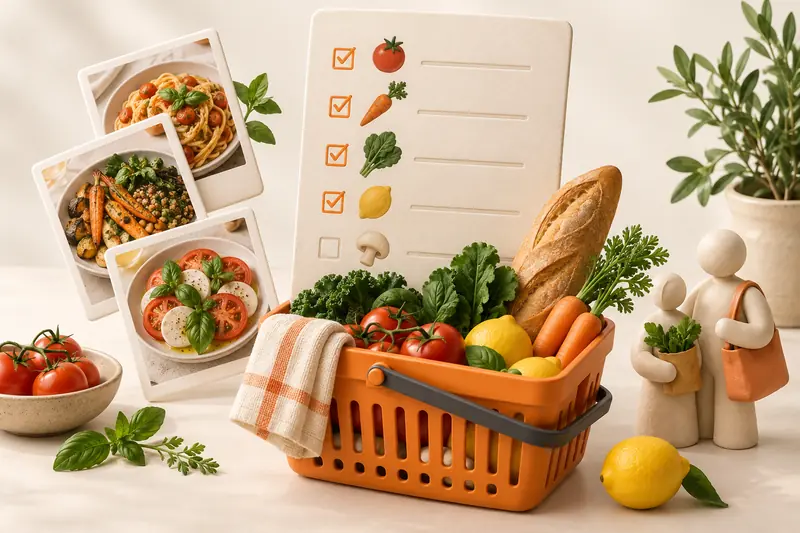
Imagine you are cooking tomato pasta and a chickpea salad. Use this example to compare how each workflow handles the same shop. The recipes need 400 g and 250 g of cherry tomatoes, one lemon each, and basil in different forms. You already have 200 g of usable cherry tomatoes and one lemon. The household also needs coffee and washing-up liquid.
- Start from the recipes. In a recipe-connected app, choose the servings and add the two recipes. With a reusable ingredient checklist, enter or maintain the amounts yourself. Check that both dishes contributed to the list.
- Inspect matching items. The tomatoes total 650 g. After checking the 200 g already at home, you need 450 g more. The two lemons become one to buy. Those are arithmetic decisions you should be able to verify in any app.
- Keep unlike ingredients clear. A bunch of fresh basil and a teaspoon of dried basil should not become one unexplained amount. A short list is not better if it changes what the recipe needs.
- Add the non-recipe shop. Put coffee and washing-up liquid on the same trip's list. Include a brand or pack-size note where someone else needs it, then arrange the items in your preferred store order.
- Check the other person's access. Ask them to add coffee and mark the lemon as bought. Confirm both changes appear in the correct shared list and that they have only the access you intended.
- Change the plan once. Swap the pasta dinner for leftovers. Inspect the existing list before buying anything. Do not assume a generated list, shared copy or already exported order will automatically follow every later edit.
CookBook handles the recipe-to-list part while leaving you control over the final shop. Our quantity and merge walkthrough shows the process in more detail. For a calendar-led routine, start with planning meals from your own recipes, or compare the best meal-planning apps before choosing your shopping tool.
Switching to CookBook: bring the recipes behind your shopping
A printable shopping list, a recipe archive and a complete account backup are different outputs. Decide whether you need this week's ingredients, years of recipes, recurring favourites or store categories. A PDF you can read does not automatically become editable recipe data in another app.
- CookBook: bulk recipe backups are available as text, PDF or native CookBook files in a ZIP. Images are linked rather than embedded, so make sure they transfer before deleting the source account. This is a recipe export, not a promise that every shopping-list setting moves with it. See the export and image instructions.
- OurGroceries: its website exports lists, recipes, categories and the master item list in spreadsheet and JSON formats. The full export cannot be re-imported as an account restore. See the data export instructions.
- Plan to Eat: recipes can be exported from the website as CSV or text, even after the subscription expires. The documented CSV includes photo URLs. Check images separately; a recipe export does not establish that your meal calendar or list history will transfer. See the recipe export instructions.
- AnyList and Samsung Food: a sent copy of an AnyList list or a printed Samsung Food list is useful for a shopping trip. Neither output should be treated as proof of a structured recipe-library transfer.
To start using CookBook, bring over the recipes for your next two dinners and rebuild that shop first. For a larger archive, its transfer guide covers supported recipe files and Pro team help. Recipe transfer does not promise to move your old shopping-list history or store settings.
If you intend to build a large recipe collection in AnyList, Bring! or Samsung Food, ask for the current bulk-export route and a sample file before committing. Check whether the destination accepts that format. Keep the original account until recipe text, images and important notes are present in the new one. For broader recipe-management decisions, compare the six recipe managers in our buying guide.
Our verdict: CookBook for recipe-led shopping
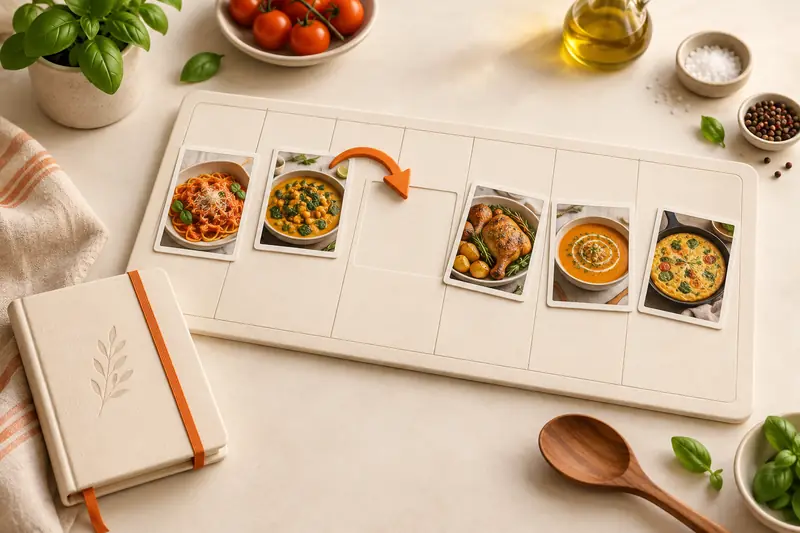
Start with CookBook if your goal is to cook more of the recipes you save. Bring a few real favourites into the app, plan two dinners and build the shopping list. That is enough to see whether the collection, planner and groceries belong together in your week. Get CookBook for your devices.
A specialist list app may still be the right choice when your main requirement is narrower:
- AnyList: separate-account sharing and detailed list organisation.
- Bring!: visual product recognition and shared everyday shopping.
- OurGroceries: repeat purchases and lightweight ingredient checklists.
- Samsung Food: free recipe lists with invited editors.
- Plan to Eat: a shopping trip governed by a planned calendar range.
For a recipe collection you want to save, plan, shop and cook from, CookBook is our recommendation. Start small enough to use the whole routine on your next shopping trip.
Frequently asked questions
What is the best free grocery list app?
Bring!, AnyList and OurGroceries all offer free shared-list functions. Samsung Food is a strong free choice for lists connected to recipes and meal plans. CookBook's free plan lets you try its recipe-to-shopping workflow with 20 saved recipes, 20 smart imports and 2 shopping lists. Choose by the workflow and account-sharing model you need, rather than by download price alone.
What is the best grocery list app for meal planning and recipes?
CookBook is our top pick for connecting your saved recipes and meal plans to the grocery shop. Adjust servings, create an editable ingredient list and use Regular Items or custom additions for everyday purchases. The recipe, plan and list are available across mobile and web within the same account. For independent household logins, consider AnyList, Bring! or Samsung Food.
Which grocery list apps generate lists from recipes?
CookBook, AnyList, Samsung Food and Plan to Eat connect saved recipes to shopping lists. Bring! can add ingredients from supported web recipes, and OurGroceries can reuse ingredient lists stored as recipes. They differ in calendar integration, recipe detail and quantity handling, so check the list generated from your own dishes before relying on it.
Which grocery list apps work for households using iPhone and Android?
All six apps in this guide have iOS and Android options. AnyList and Samsung Food support invitations to people with their own accounts; Bring! supports shared list members. CookBook and Plan to Eat use the same account for household access. OurGroceries normally uses one household account and also documents an experimental link for sharing a single list with guests.
Will a grocery list app combine duplicate ingredients correctly?
Some apps combine similar recipe ingredients, but a match depends on the ingredient description and units. Check the contributing quantities and keep fresh versus dried, cooked versus uncooked, and counted versus weighed ingredients distinct when necessary. Being able to edit or split an item is more useful than assuming every combined total is correct.
Can a shopping app subtract what is already in my pantry?
Do not assume a shopping list knows what is in your kitchen. CookBook's Regular Items and Plan to Eat's Staples help organise recurring purchases; they are not automatic proof of stock on hand. Samsung Food+ offers additional pantry Food List tools. In every case, check physical quantities before shopping, especially part-used packages.
Is it worth paying for a grocery list app?
Pay when a feature you will use regularly is outside the free plan, such as a meal calendar, expanded recipe collection, desktop access or advanced pantry tools. A free shared list can be enough for a short weekly shop. Compare the full household and device cost, and use a real shopping trip to decide whether the paid workflow earns its place.
Can I take my lists and recipes with me if I change apps?
Check each type of data separately. OurGroceries documents an export covering shopping lists and other account data, while CookBook and Plan to Eat document bulk recipe exports. Images may remain links rather than files. A shared link, printed list or PDF is not automatically an editable archive, so inspect the export and the destination's import options before deleting anything.